
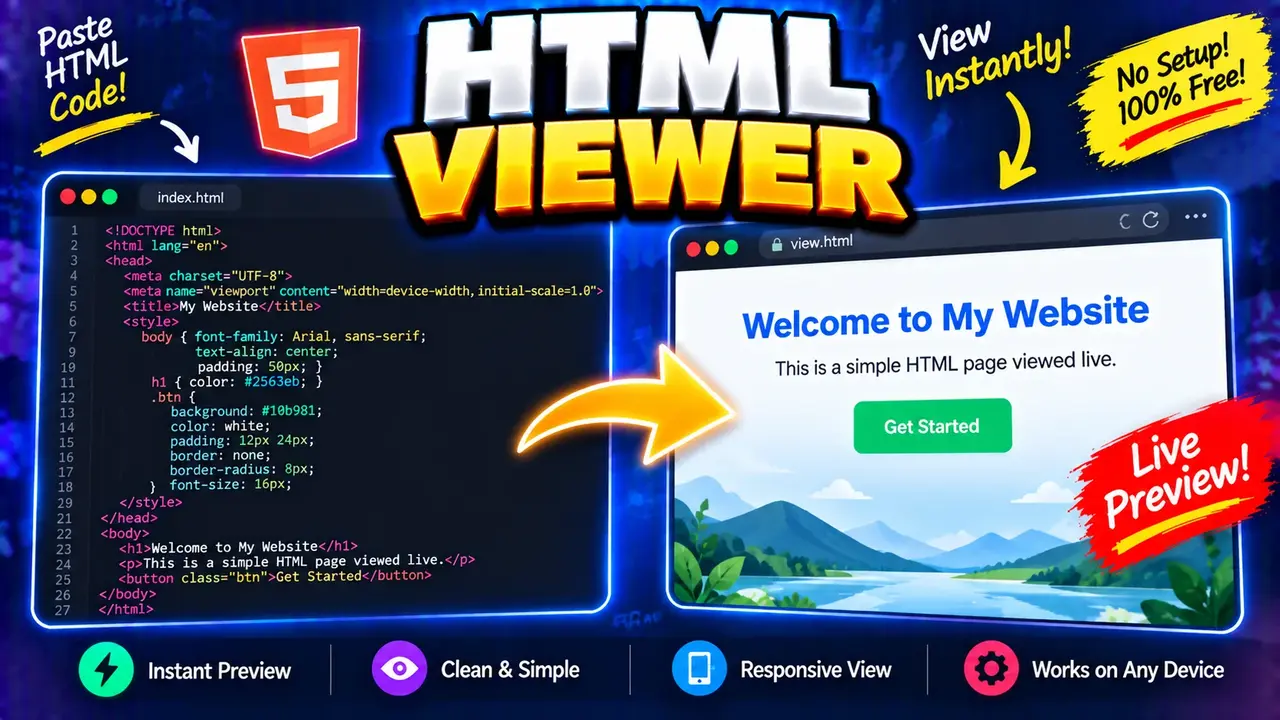
Online Html Viewer & Editor - Preview Code Live
Quick answer: Online Html Viewer & Editor - Preview Code Live is a browser-based HTML viewing and editing utility intended to help users inspect HTML code and preview rendered output. It is useful for learning HTML, testing markup changes, and reviewing how HTML elements appear in a rendered page.
HTML (HyperText Markup Language) defines the structure and meaning of web content. An HTML viewer helps users inspect or display markup, while an HTML editor allows them to modify code. A live preview workflow connects editing with visual inspection, making it easier to compare source markup with its rendered appearance.
Online Html Viewer & Editor - Preview Code Live is relevant to web developers, students, designers, content editors, and anyone experimenting with HTML. Rather than repeatedly saving a document and opening it in a separate tab, a live-preview editor can make the relationship between HTML elements and the rendered page easier to understand. The exact editor controls, supported input methods, preview refresh behavior, and export options depend on the deployed implementation.
What Can You Use an Online HTML Viewer and Editor For?
- Inspect markup: Review HTML tags, attributes, text content, links, images, lists, tables, and document structure.
- Experiment with page structure: Change headings, paragraphs, containers, and other HTML elements to see how markup affects the rendered result.
- Learn HTML: Connect source elements such as headings and lists to their visual presentation.
- Prototype small page fragments: Explore a basic landing-page section, content layout, or informational snippet before integrating it into a larger project.
- Debug visual differences: Compare intended markup with its rendered appearance and investigate malformed tags or unexpected nesting.
Key Takeaways
- Primary function: View and edit HTML while inspecting rendered output.
- Typical input: HTML markup, such as document elements, text, links, lists, and tables.
- Expected output: A rendered representation of the HTML being previewed.
- Best suited for: Learning, markup experimentation, and lightweight HTML prototyping.
How to Use Online Html Viewer & Editor - Preview Code Live?
- Open the editor: Navigate to the tool and identify its HTML editing area and preview panel, if provided.
- Enter HTML: Paste or type valid HTML markup into the editor using the input method supported by the page.
- Review the preview: Inspect the rendered page and compare it with the source markup. If the preview is not automatic, use the available preview or run control.
- Modify and inspect: Change the HTML, then review the result again. Repeat until the structure and visible output meet your requirements.
The exact interface may differ by deployment. Do not assume that the tool supports file uploads, downloading, automatic saving, syntax highlighting, CSS editing, JavaScript execution, or a particular refresh shortcut unless those features are confirmed in the live implementation.
HTML Input and Preview Example
The following example demonstrates a simple HTML document and the kind of rendered content an HTML previewer can display. It illustrates standard HTML behavior rather than asserting that this exact example is preloaded in the tool.
Example input
<!DOCTYPE html>
<html lang="en">
<head>
  <meta charset="UTF-8">
  <meta name="viewport" content="width=device-width, initial-scale=1.0">
  <title>Product Notes</title>
</head>
<body>
  <h1>Product Notes</h1>
  <p>A compact introduction to the product.</p>
  <ul>
    <li>Clear documentation</li>
    <li>Simple navigation</li>
    <li>Readable content</li>
  </ul>
</body>
</html>
Expected rendered result
- A prominent heading reading “Product Notes”.
- A paragraph containing a short product introduction.
- A three-item bulleted list.
The browser interprets the HTML elements and builds a document structure, then renders the result according to the browser's HTML and CSS behavior. Default fonts, spacing, heading sizes, and list indentation may vary by browser and page styles.
HTML Elements and Their Expected Preview Behavior
This reference table explains common HTML elements users may test in an HTML viewer. The results describe standard browser rendering and can be affected by CSS, inherited styles, and the surrounding document.
| HTML element | Purpose | Typical rendered behavior | Useful test |
|---|---|---|---|
<h1>–<h6> |
Define headings at different levels | Display heading text with browser or stylesheet-defined styling | Compare heading hierarchy and spacing |
<p> |
Represent a paragraph | Creates a block of text with paragraph spacing determined by styles | Inspect text wrapping and margins |
<a href="..."> |
Create a hyperlink | Usually displays link text with link styling | Check the link destination and visible text |
<img src="..." alt="..."> |
Embed an image | Displays the image if the resource loads and dimensions permit | Check the image path and alternative text |
<ul> and <li> |
Represent an unordered list and its items | Displays list items, commonly with bullets | Test list nesting and item order |
<ol> and <li> |
Represent an ordered list and its items | Displays list items with numbering or another configured marker | Check numbering and nested lists |
<table>, <tr>, <th>, <td> |
Represent tabular data | Arranges cell content into rows and columns | Inspect column alignment and header structure |
<strong> and <em> |
Mark strong importance and emphasis | Commonly appear bold and italic, respectively, under default styling | Check emphasis within a paragraph |
<div> and <span> |
Group content for structure or styling | A div is normally block-level; a span is normally inline |
Compare block and inline layout behavior |
How HTML Previewing Works
HTML previewing is based on the browser's document parsing and rendering process. The editor supplies markup; a preview surface, when available, displays a rendered interpretation of that markup. The visible result depends on the document, stylesheets, browser defaults, and any permitted external resources.
- Source entry: HTML markup is entered or modified in the editor.
- Parsing: The browser parses the markup into a document tree. Browsers may recover from some malformed HTML rather than stopping at the first error.
- Style and layout: CSS rules, browser defaults, fonts, available resources, and viewport dimensions affect how elements are laid out.
- Rendering: The browser paints the resulting content in the preview area.
- Iteration: Users change the source and compare the updated result to identify differences or refine the page.
HTML defines document structure, not the complete design of a website. CSS controls presentation, while JavaScript can introduce dynamic behavior. An HTML editor's ability to edit or execute CSS and JavaScript separately must be verified from its actual controls; an HTML preview alone does not establish that all three technologies are supported as independent inputs.
Technical Edge Cases and Limitations
Malformed or incomplete markup
Missing closing tags, incorrectly nested elements, and incomplete attributes can produce a result that differs from the author's intention. Browsers automatically repair some markup, so a page that renders is not necessarily valid or accessible HTML. Use a dedicated HTML conformance checker when standards validation is required.
External images, stylesheets, and links
An image or stylesheet may fail to appear if its URL is incorrect, the remote server is unavailable, or browser security restrictions prevent access. A hyperlink appearing in the preview does not prove that the destination is reachable. Relative URLs may also behave differently depending on the preview document's base URL.
CSS and JavaScript dependencies
A markup fragment that depends on an external stylesheet, a JavaScript library, or project-specific CSS may look or behave differently outside its original website. Confirm which resources the preview environment loads and whether separate CSS or JavaScript input is available before relying on a test as a complete reproduction of a production page.
Responsive layout
Viewport width influences line wrapping, image scaling, and layout. A page that looks correct at one size may overflow or become difficult to use on a smaller screen. If the tool offers viewport controls, test multiple widths; otherwise, verify responsive behavior in a browser's developer tools.
Empty input and large documents
An empty editor has no meaningful HTML content to preview. Very large documents, deeply nested markup, and pages with numerous external resources can also make editing or rendering less convenient. No specific input-size limit or performance guarantee is stated here because the deployed tool's limits have not been established.
Preview safety and privacy
HTML can reference remote resources, and documents that include scripts may execute active content in some preview environments. Do not paste confidential source code or sensitive data into an online editor unless its data-handling practices are suitable for that information. The processing location, data retention policy, script isolation, and upload behavior of this particular deployment have not been verified, so no guarantee of local-only processing or zero storage should be inferred.
Standards and Further Reading
- WHATWG HTML Living Standard — the primary reference for HTML syntax, elements, parsing, and browser behavior.
- MDN Web Docs: HTML — practical explanations and examples of HTML elements, attributes, and document structure.
Use a live preview to inspect appearance and behavior, but use the relevant standards documentation and dedicated validators when correctness, accessibility, compatibility, or production readiness must be established.
Frequently Asked Questions
Can I preview raw HTML code in a browser?
Yes. An HTML preview tool is intended to show a rendered interpretation of HTML markup. The exact entry and preview controls depend on the implementation.
Why does my HTML preview look different from my website?
Your website may rely on CSS files, JavaScript, fonts, images, framework styles, or a specific viewport. If the preview does not load the same dependencies, its appearance may differ from the production page.
Does a successful preview mean my HTML is valid?
No. Browsers can recover from certain markup errors and still render a page. Use an HTML validator if you need to check document conformance.
Can an HTML viewer preview CSS and JavaScript?
CSS can affect HTML rendering when the stylesheet is included and loaded. JavaScript behavior depends on whether scripts are supported and enabled in the preview environment. Confirm these capabilities in the deployed tool before relying on them.
Why is an image missing from the preview?
Check the image URL, file path, network availability, and any browser restrictions affecting the resource. Relative paths may fail when the preview does not share the same directory or base URL as the original project.
Is my HTML code private when I use this online editor?
The tool's processing architecture and retention behavior have not been verified. Avoid entering confidential code or personal data until you have checked the site's privacy policy and understand how submissions are processed.
Can I use the preview as a production test?
Use it for quick markup inspection and prototyping, not as the sole production test. Verify accessibility, responsive layouts, browser compatibility, external dependencies, and HTML conformance separately when those factors matter.
Author
Author Name: Morgan Reed
Author Description: Technical Content Specialist focused on web technologies, HTML document structure, and developer education.
Technical Review: This content describes standard HTML parsing and rendering behavior and distinguishes those general browser capabilities from features of the deployed editor that have not been independently verified.