
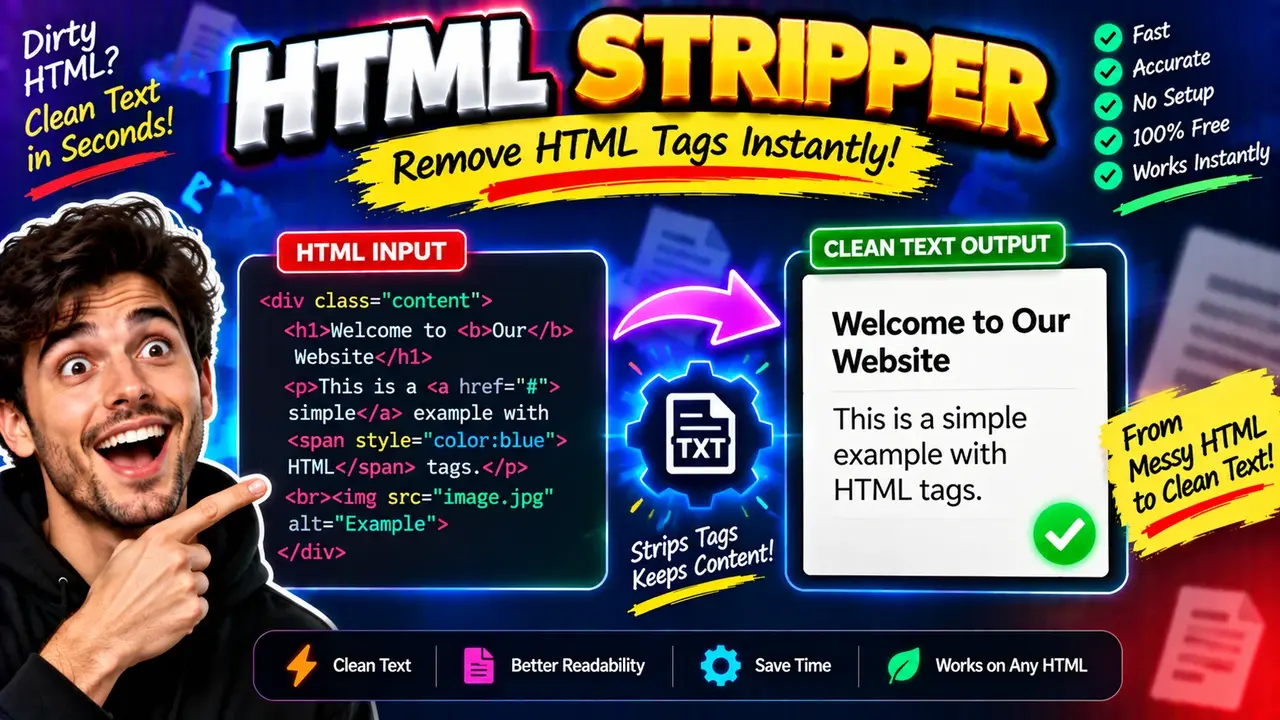
Online Html Stripper - Convert Html To Plain Text
An Online HTML Stripper converts HTML markup into readable plain text by removing HTML tags and extracting the text contained in an HTML fragment or document. It is useful for cleaning copied webpage content, preparing text for plain-text editors, extracting readable content from HTML snippets, and simplifying markup-heavy text for further processing.
Quick answer: Online Html Stripper - Convert Html To Plain Text is an HTML-to-text utility intended to remove markup such as opening and closing tags while retaining readable text. The expected output is plain text without HTML tag syntax. Exact handling of scripts, styles, entities, whitespace, and malformed markup depends on the implementation.
What Does an HTML Stripper Do?
HTML describes webpage structure through elements such as headings, paragraphs, links, lists, tables, and emphasis. These elements use tags enclosed in angle brackets. An HTML stripper removes markup to produce a text-oriented representation that is easier to read, copy, index, or reuse.
For example, the markup <p>Welcome to <strong>ToolHox</strong>.</p> contains a paragraph element and a nested strong element. A basic tag-removal operation produces Welcome to ToolHox.
Removing tags is not necessarily the same as extracting the complete visible text of a webpage. HTML may contain script elements, style elements, hidden content, comments, encoded characters, and structural boundaries that affect the resulting text. The output therefore depends on the stripping method used by the tool.
How to Use Online Html Stripper - Convert Html To Plain Text?
- Enter HTML: Paste the HTML snippet or markup you want to clean into the input field.
- Review the input: Check that the source includes the intended text and relevant HTML tags.
- Run the stripper: Use the tool's available conversion action to process the markup.
- Inspect the output: Review the resulting plain text and check spacing, punctuation, and encoded characters.
- Reuse the text: Copy the result into a text editor, document, content workflow, or another application.
Use a small HTML sample first if the input contains scripts, CSS, tables, or complex nesting. A short test makes it easier to identify how the tool handles the specific markup in your source.
Input and Output Example
The following example illustrates a basic HTML-tag removal operation. It represents the expected result of stripping these simple tags; exact whitespace handling depends on the implementation.
Input HTML
<h2>Product Details</h2>
<p>Material: <strong>Cotton</strong></p>
<p>Color: Blue</p>
<a href="https://example.com/product">View product</a>
Expected Plain-Text Output
Product Details
Material: Cotton
Color: Blue
View product
The example demonstrates three important distinctions. First, element tags such as <h2> and <p> are markup rather than ordinary text. Second, text inside nested elements, such as <strong>Cotton</strong>, can remain after the tags are removed. Third, an HTML attribute such as href is not automatically included in the text output when the operation simply removes tags.
HTML Tag Reference: What Is Removed and What Remains?
The following reference describes the expected result of a straightforward tag-stripping operation. It is not a verified compatibility list for every advanced behavior of this specific tool.
| HTML input | Text after basic tag removal | Important consideration |
|---|---|---|
<p>Hello world</p> |
Hello world | Paragraph tags disappear; the words remain. |
<strong>Important</strong> |
Important | Emphasis markup is removed, not the enclosed word. |
<a href="/about">About us</a> |
About us | The link label remains; the destination URL may be lost. |
<li>First item</li> |
First item | List tags are removed; numbering or bullet formatting may not be preserved. |
<img src="photo.jpg" alt="Blue shirt"> |
Often empty | Alternative text is stored in an attribute, not as ordinary element text. |
<br> |
Often empty | A basic tag remover may discard the line-break tag instead of inserting a newline. |
& |
Depends on entity decoding | Entity decoding is a separate operation from removing tags. |
<!-- editorial note --> |
Depends on comment handling | Removing tag-shaped syntax and removing HTML comments are not necessarily equivalent. |
How Does HTML-to-Plain-Text Conversion Work?
A simple HTML stripper can identify tag-like sequences and remove them while retaining the characters between tags. A more sophisticated HTML-to-text converter may parse the markup as a document tree, extract text nodes, decode character references, and introduce whitespace where structural elements indicate separate lines or blocks.
These approaches can produce different results from the same input. A regular-expression-based removal method, for example, does not provide the same parsing guarantees as an HTML parser. Malformed markup, quoted angle brackets inside attributes, embedded script content, and unusual nesting can complicate simple tag removal.
For predictable results, distinguish these separate operations:
- Tag stripping: Removes markup delimiters and tag syntax.
- Text extraction: Retrieves text content from an HTML document structure.
- Entity decoding: Converts character references such as
&into their represented characters. - Whitespace normalization: Adjusts repeated spaces, tabs, and line breaks.
- Content filtering: Excludes selected elements or content, such as scripts or styles, when the implementation explicitly supports that behavior.
These operations are related but not interchangeable. Removing a tag does not automatically decode entities, preserve document layout, remove hidden content, or recover URLs from attributes.
Technical Edge Cases and Limitations
HTML Entities
HTML commonly uses named and numeric character references. For example, < represents the less-than character, and represents a non-breaking space. If entity decoding is not performed, these sequences may remain visible in the output rather than becoming their corresponding characters.
Links and Images
Links store their destination in the href attribute, while images can store alternative text in the alt attribute. Removing tags may retain the link label but discard its URL, and it may omit an image's alternative text. If these values matter, verify whether the tool extracts attributes before relying on the result.
Paragraphs, Lists, and Tables
HTML tags establish structure, but a plain-text output does not inherently preserve that structure. If block tags are removed without replacement whitespace, adjacent paragraphs may run together. Table cells may lose their column boundaries, and list items may lose their original bullet or numbering style.
Scripts, Styles, and Hidden Content
Removing a <script> or <style> tag is not the same as excluding everything inside that element. Some basic approaches leave the element's contents behind after removing its tags. Likewise, hidden elements may still contain text in the underlying HTML source. Do not assume that all non-visible content is filtered out unless the tool's behavior has been verified.
Malformed HTML and Large Inputs
Unclosed tags, nested markup errors, and unusual attribute values can lead to unexpected results. Very large inputs may also be affected by browser or implementation limits. Since no specific input-size limit or error-handling behavior has been established here, validate representative inputs before processing large documents.
When Should You Use an HTML Stripper?
- Content editing: Remove HTML tags from text copied from a webpage or content-management system.
- Data preparation: Create a cleaner text field before reviewing or processing HTML-derived content.
- Text reuse: Extract the words inside simple HTML snippets for documents, notes, or plain-text workflows.
- Debugging: Inspect the text contained in markup without manually reading every tag.
- Content migration: Prepare basic text for a destination that does not accept HTML formatting.
An HTML stripper is not a complete HTML sanitizer. Removing tags does not establish that text is safe to insert into a webpage, SQL statement, shell command, or other executable context. If you need security-sensitive output, use a context-appropriate sanitization or escaping process.
Technical References
- WHATWG HTML Living Standard — authoritative reference for HTML syntax, parsing, elements, and character references.
- MDN: DOMParser — documentation for parsing HTML or XML into a document representation in supported web environments.
Frequently Asked Questions
Does stripping HTML remove all formatting?
It removes markup syntax, but the output may retain whitespace or line breaks. Whether paragraphs, lists, and table structures remain readable depends on how the conversion handles structural tags.
Does the tool decode HTML entities?
Entity decoding is separate from tag removal. Check whether character references such as &, <, and are decoded by the implementation.
Will link URLs appear in the plain-text output?
Not necessarily. A basic stripper retains the text between anchor tags but may discard the href attribute containing the URL.
Can HTML stripping remove JavaScript and CSS?
Not reliably through tag removal alone. A basic operation may remove the script and style tags while leaving their contents. Use a parser or a tool with explicitly documented content-exclusion behavior when those contents must be removed.
Is plain text produced by stripping HTML safe to use in applications?
Not automatically. Plain text may still contain untrusted input, executable-looking text, or characters that require escaping for the destination context. Apply the appropriate validation, encoding, or sanitization before using the output in security-sensitive workflows.
Does stripping HTML preserve paragraph and list formatting?
Not inherently. A simple tag remover may remove paragraph and list tags without adding newlines or list markers. Inspect the result when the original document's structure matters.
Author and Technical Review
Author Name: Michael Turner
Author Description: Software Engineer specializing in web technologies, text processing, and content transformation workflows.
Technical Review: This page explains the distinction between basic HTML tag removal and structured text extraction, including entity decoding, attribute loss, whitespace behavior, and the limitations of simple markup-stripping approaches. Tool-specific implementation details should be verified against the deployed utility before being stated as supported features.