
Json To Excel Converter Online Free - Excel Export
Convert JSON data into Excel-ready rows and columns with Json To Excel Converter Online Free. Organize API responses and structured records for spreadsheet analysis.
Loading tool… if this message stays, JavaScript is blocked or failed to load — check your connection and console, then reload.
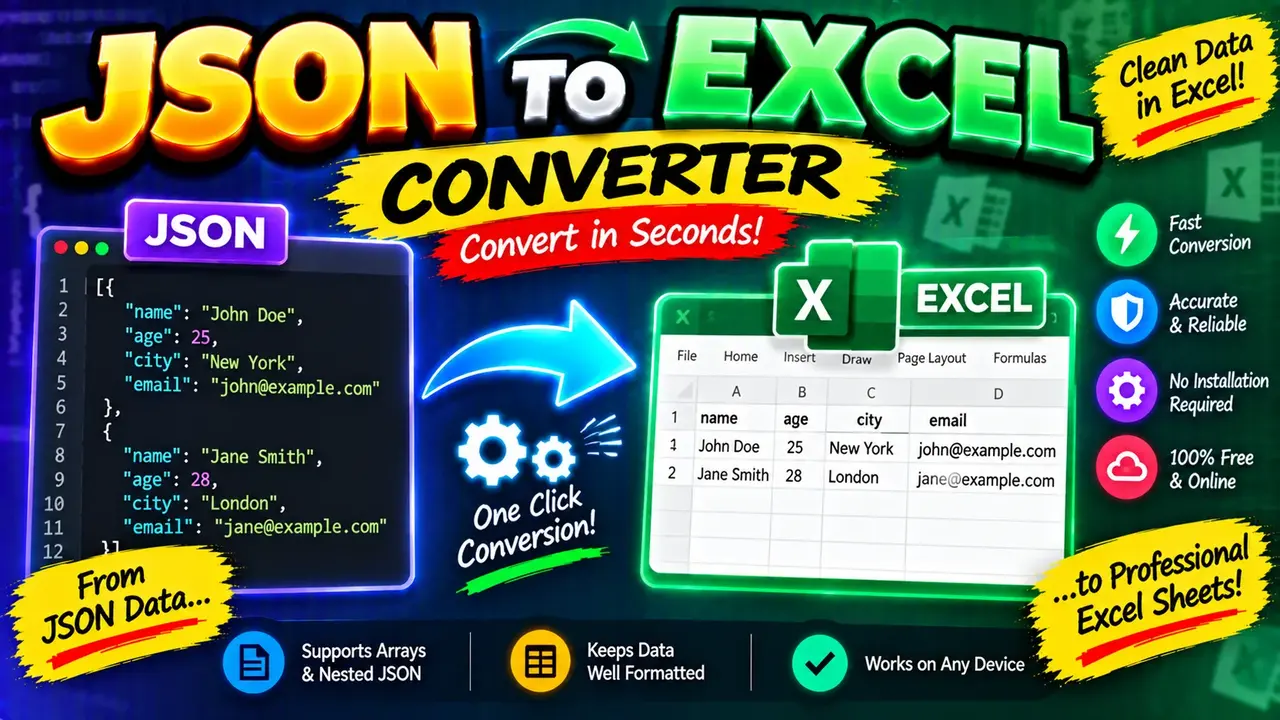
Json To Excel Converter Online Free (fast & Secure)
Quick answer: Json To Excel Converter Online Free is a data conversion utility designed to transform JSON (JavaScript Object Notation) data into Excel-compatible spreadsheet output. It is useful for organizing API responses, exporting structured records, reviewing datasets, and preparing JSON data for spreadsheet-based analysis.
JSON stores data as objects, arrays, key-value pairs, and nested structures. Excel organizes information into rows and columns. Converting JSON to Excel bridges these two formats, making structured data easier to filter, sort, review, share, and analyze using spreadsheet software.
This tool is intended for developers, data analysts, business users, students, and anyone who needs to move structured JSON data into a spreadsheet workflow. The exact conversion behavior depends on the converter's implementation, particularly how it handles nested objects, arrays, data types, and export formats.
What Can You Convert from JSON to Excel?
JSON is commonly used for REST API responses, configuration files, application exports, and datasets exchanged between services. Excel is useful when the same information needs to be reviewed in a tabular layout.
- API responses: Turn arrays of JSON objects into spreadsheet-style records.
- Business records: Organize customer, order, inventory, or transaction data into columns.
- Data analysis: Prepare structured records for spreadsheet filtering, sorting, and calculations.
- Reporting: Move suitable JSON datasets into a spreadsheet-oriented reporting workflow.
- Data inspection: Examine field values and identify missing or inconsistent records in tabular data.
How to Use Json To Excel Converter Online Free?
- Prepare your JSON: Obtain a JSON document or API response containing the records you want to convert.
- Enter the input: Paste or upload the JSON using the input method provided by the tool.
- Run the conversion: Start the conversion using the available interface controls.
- Review the result: Inspect the generated spreadsheet data and use the available export or download option, if provided.
For the most predictable tabular results, begin with a JSON array containing objects that share the same field names. This structure naturally represents spreadsheet rows with consistent columns.
What Input Should You Provide?
A typical input is a valid JSON array of objects. Each object represents one record, while its properties provide the values that can be represented as spreadsheet columns.
For example, an inventory dataset might contain product identifiers, names, quantities, and prices. A converter can use those property names as column headings when its mapping behavior supports that structure.
JSON to Excel Input and Output Example
Input JSON:
[
  {
    "productId": 101,
    "productName": "Wireless Mouse",
    "quantity": 25,
    "price": 19.99
  },
  {
    "productId": 102,
    "productName": "USB Keyboard",
    "quantity": 12,
    "price": 34.50
  },
  {
    "productId": 103,
    "productName": "Laptop Stand",
    "quantity": 8,
    "price": 27.00
  }
]
Expected tabular representation:
| productId | productName | quantity | price |
|---|---|---|---|
| 101 | Wireless Mouse | 25 | 19.99 |
| 102 | USB Keyboard | 12 | 34.50 |
| 103 | Laptop Stand | 8 | 27.00 |
This example illustrates the expected data mapping for a conventional array-of-objects conversion. It is not a guarantee of the exact output generated by every implementation of the tool.
JSON to Excel Data Type and Structure Reference
JSON and Excel represent information differently. JSON has explicit value types and supports nested structures, while a spreadsheet uses cells arranged in rows and columns. The following table explains the considerations involved in mapping common JSON values to spreadsheet cells.
| JSON Value or Structure | Possible Spreadsheet Representation | Important Consideration |
|---|---|---|
| String | Text cell | Identifiers, codes, and leading zeros may need text formatting. |
| Integer | Numeric cell | Large identifiers may require text storage to avoid precision changes. |
| Decimal number | Numeric cell | Currency and precision requirements should be checked after export. |
| Boolean | Boolean value or text | The representation depends on the converter's export behavior. |
| Null | Blank cell or explicit null representation | Missing values and explicit null values may need different treatment. |
| Array of objects | Rows and columns | Consistent object properties make the most predictable table structure. |
| Nested object | Flattened columns, serialized text, or another representation | The converter determines how nested property paths are represented. |
| Array inside an object | Serialized value, expanded data, or another representation | Expansion can change the number of rows and the relationship between records. |
How Does JSON to Excel Conversion Work?
JSON-to-Excel conversion generally involves parsing the input, identifying records and their properties, mapping values into a tabular structure, and producing spreadsheet-compatible output.
- Parsing: The JSON text is interpreted according to JSON syntax rules.
- Record identification: The converter determines which objects or arrays represent the data to export.
- Column mapping: Object properties are mapped to spreadsheet columns according to the converter's rules.
- Value mapping: Strings, numbers, Boolean values, and null values are represented in the output.
- Export: The resulting data is prepared in the output format supported by the tool.
For technical reference, JSON syntax is specified by RFC 8259. Excel workbook formats and spreadsheet compatibility depend on the actual output format selected by the converter.
Important Edge Cases and Limitations
Nested JSON Objects
Consider an object containing a customer name and a nested address object. A converter might flatten the address into separate columns, serialize it as JSON text, or handle it through another mapping strategy. Review the generated output before relying on nested data.
Inconsistent Object Properties
If records contain different keys, the resulting spreadsheet may contain additional columns, blank cells, or other implementation-dependent representations. Check that every required field appears in the output.
Arrays and Mixed Data Types
An array containing strings, numbers, and objects does not naturally map to one uniform spreadsheet column. Arrays nested within records can also represent multiple related values. Inspect how the tool handles these structures before using the result for reporting.
Invalid or Empty JSON
Missing commas, unmatched braces, unquoted property names, and trailing commas can make a JSON document invalid. Empty input does not provide records to convert. Correct malformed input and retry if the tool reports a parsing problem.
Numbers, Identifiers, and Dates
Spreadsheet applications may interpret numeric-looking strings as numbers or dates depending on their import and cell-formatting behavior. Long identifiers, postal codes, telephone numbers, and values containing leading zeros should be checked carefully. Numeric precision may also matter when exporting large integers or high-precision decimal values.
Output Format and Privacy
Excel-compatible output can refer to different formats, including XLSX and CSV. These formats are not interchangeable: CSV contains tabular text and does not preserve workbook features such as multiple worksheets, cell formatting, or formulas as workbook structures. Confirm the actual export format offered by this tool before choosing a workflow.
Privacy note: The processing location, upload behavior, retention policy, and security controls for this specific implementation have not been established here. Avoid submitting confidential, regulated, or sensitive datasets until you have verified the tool's data-handling practices.
Frequently Asked Questions
Can JSON arrays be converted into Excel rows?
Yes. An array of JSON objects is a natural structure for a spreadsheet: each object can represent one row, and its properties can represent columns. The exact mapping depends on the converter.
What happens to nested JSON objects?
Nested objects may be flattened into columns, serialized as text, or processed using another mapping rule. Check the converter's output to determine how nested property paths are represented.
Can JSON null values be converted into Excel?
Yes, but the representation varies. A null value may become a blank cell or an explicit text representation. If the distinction between null and missing data matters, verify the output before analysis.
Should I use XLSX or CSV for the converted data?
Choose XLSX when you need an Excel workbook with worksheet structure and spreadsheet features. CSV is suitable for plain tabular data exchange, but it does not preserve workbook formatting, formulas, or multiple worksheets.
Why does the converted spreadsheet contain blank cells?
Blank cells can occur when records have inconsistent property names, some values are missing, or the converter represents null values as blanks. Compare the original JSON keys and values with the generated columns.
Is it safe to convert confidential JSON data online?
Safety depends on the specific implementation's processing architecture, upload behavior, and retention policy. Verify those details before entering confidential information; do not assume that an online converter processes everything locally.
Author Information
Author: ToolHox Technical Content Team
Technical Review: This content describes standard JSON structures and common spreadsheet-mapping considerations. Confirm the converter's actual input methods, export formats, nested-data behavior, and privacy practices against its implementation before publishing capability-specific claims.