
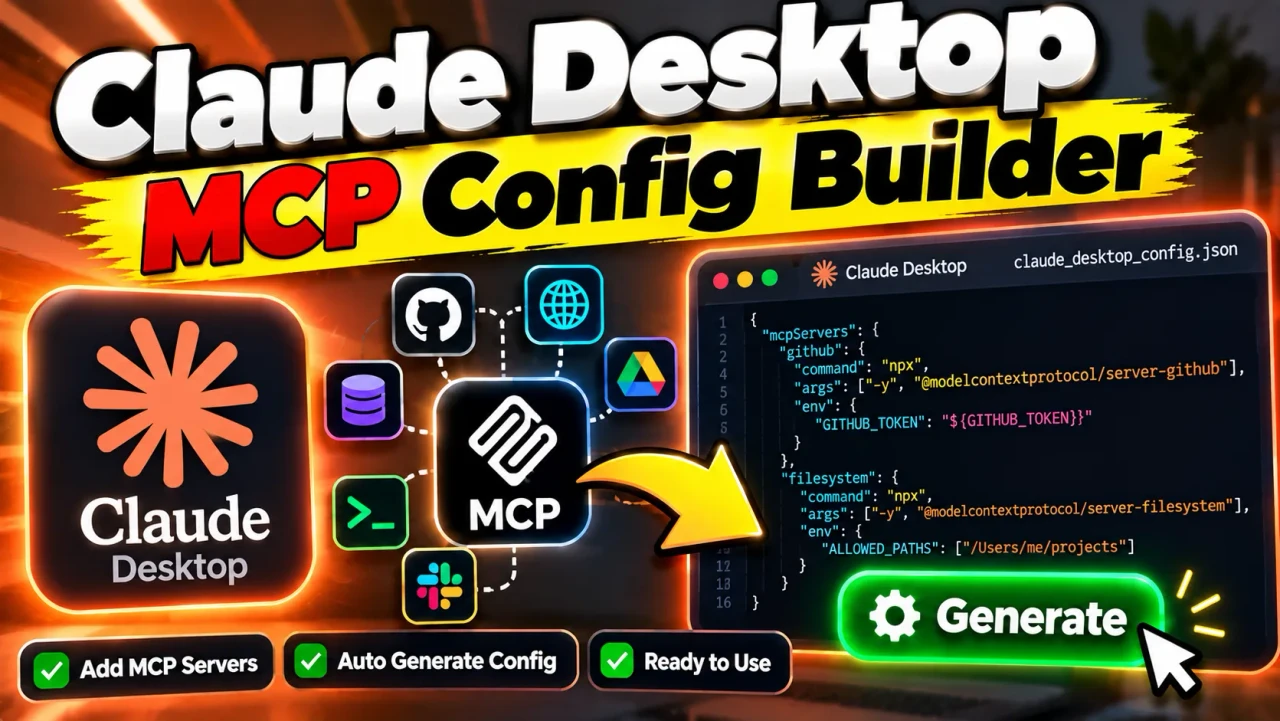
Claude Desktop MCP Config Builder
Quick answer: The Claude Desktop MCP Config Builder is a developer utility designed to help users prepare configuration JSON for connecting Model Context Protocol (MCP) servers to Claude Desktop. Its intended purpose is to simplify the creation of the mcpServers configuration structure used to define MCP server connections.
The Claude Desktop MCP Config Builder is intended for developers, AI enthusiasts, and technical users who want to configure MCP server integrations without manually assembling the entire JSON configuration. Model Context Protocol (MCP) is an open protocol for connecting AI applications with external tools, resources, and services. Claude Desktop can use compatible MCP servers to expose additional capabilities to the application.
Rather than writing a configuration from scratch, users can use a configuration builder to organize server names, launch commands, command-line arguments, and environment variables into a structured configuration. The exact fields supported, validation behavior, and export options depend on the implementation of the builder.
How to Use Claude Desktop MCP Config Builder?
- Identify the MCP server: Determine which MCP server you want Claude Desktop to connect to and whether it runs locally or remotely.
- Enter the server configuration: Supply the server identifier and the required launch command, arguments, and environment variables if those fields are supported by the builder.
- Generate the JSON: Review the resulting configuration structure and check that the values match the server's installation instructions.
- Configure Claude Desktop: If the builder provides a compatible configuration output, incorporate it into the appropriate Claude Desktop configuration file and restart the application when required.
These are the general steps for preparing an MCP configuration. The precise interface and available options depend on the actual implementation of the tool.
Understanding Claude Desktop MCP Configuration
An MCP server configuration identifies a server and provides the information the client needs to start or connect to it. For a locally launched server, the configuration commonly includes a command, an array of arguments, and optional environment variables.
A typical local-server configuration uses an outer mcpServers object. Each property beneath it represents a server identifier, and its value contains the server-specific settings.
Example Input
Suppose a hypothetical local MCP server is launched with Node.js and the server package is available through an executable command. A representative configuration entry could look like this:
{
  "mcpServers": {
    "example-server": {
      "command": "npx",
      "args": [
        "-y",
        "example-mcp-server"
      ]
    }
  }
}
This is an illustrative configuration example, not a claim that a particular package exists or that the builder has been tested with it. Replace the command and arguments with the instructions provided by the actual MCP server developer.
Understanding the Output
mcpServers: The object that groups MCP server definitions.example-server: A user-defined identifier for the server.command: The executable used to launch a local server process.args: An array of command-line arguments passed to the executable.env: An optional object for environment variables when the server requires them and the configuration format supports them.
MCP Configuration Field Reference
The following reference describes common fields found in local MCP server configurations. It explains the configuration format rather than asserting that every field is supported by this specific builder.
| Field | JSON Type | Purpose | Example |
|---|---|---|---|
mcpServers |
Object | Groups server definitions by identifier. | {"server": {...}} |
| Server identifier | Object key | Names a particular server configuration. | "filesystem" |
command |
String | Specifies the executable used to launch a local server. | "node" |
args |
Array of strings | Supplies command-line arguments in order. | ["server.js"] |
env |
Object | Provides environment variables required by a server. | {"MODE": "production"} |
Field requirements can vary with the server and the integration method. Remote MCP connections may use different connection settings from locally launched processes, so do not assume that a local command and args configuration is suitable for every server.
How MCP Configuration Generation Works
A configuration builder generally assembles values into a JSON object that represents the desired server connection. The essential transformation is structural: individual settings are grouped under the relevant server identifier and serialized into JSON syntax.
- Collect values: Gather the server identifier and the required connection settings.
- Organize fields: Place the values under the correct configuration keys.
- Serialize JSON: Represent strings, arrays, and objects using valid JSON syntax.
- Review the result: Check that the command, arguments, environment variables, and server-specific requirements are correct.
Generating valid JSON does not automatically guarantee that an MCP server will launch successfully. The executable must be available, the arguments must be correct, and the server must satisfy the requirements of the Claude Desktop version and the integration being used.
Common Configuration Errors and Limitations
Malformed JSON
Missing quotation marks, unmatched braces, trailing commas, and incorrectly formatted arrays can make a configuration file invalid. Review the generated output with a JSON validator before using it.
Incorrect Command or Arguments
A syntactically valid configuration can still fail if the executable is unavailable, the package name is incorrect, the script path is wrong, or the arguments do not match the server's documentation.
Environment Variables and Credentials
Some MCP servers require API keys, access tokens, or other environment variables. Use the names and formats documented by the server. Avoid publishing generated configuration files containing actual secrets, and do not assume that the builder masks or protects sensitive values unless that behavior is verified.
Local and Remote Connections
Locally launched MCP servers and remote MCP endpoints may require different configuration structures. Confirm which connection method the server supports before generating the configuration.
Tool-Specific Validation
The implementation details supplied here do not establish whether this builder performs schema validation, checks executable availability, tests server connectivity, or automatically installs configurations. Treat generated output as a configuration draft until it has been reviewed and tested.
Security and Configuration Best Practices
- Use MCP servers from sources you trust and review the permissions they request.
- Follow the server developer's installation and configuration documentation.
- Keep API keys and tokens out of public repositories and shared configuration examples.
- Use appropriate file permissions for configuration files containing sensitive values.
- Review server commands and arguments before launching an unfamiliar process.
- Test the connection and confirm that the intended tools or resources become available in Claude Desktop.
For implementation details, consult the official Model Context Protocol documentation and Anthropic Support. These resources can help establish the correct configuration and troubleshooting steps for the relevant client and server versions.
Frequently Asked Questions
What does the Claude Desktop MCP Config Builder generate?
It is intended to help create JSON configuration for connecting MCP servers to Claude Desktop. The exact fields and output formats depend on the tool's implementation.
What is the mcpServers object?
mcpServers is the configuration object used to group named MCP server definitions in supported Claude Desktop local-server configurations.
Can I configure more than one MCP server?
The configuration structure can represent multiple named server entries. Whether this builder supports creating multiple entries through its interface must be confirmed from the actual implementation.
Does valid JSON guarantee that the MCP server will work?
No. Valid JSON confirms only that the configuration is syntactically well formed. The command, arguments, dependencies, permissions, and server compatibility must also be correct.
Can I put API keys in an MCP configuration?
Some servers accept credentials through environment variables. Follow the server's documented requirements, protect configuration files containing secrets, and avoid sharing real credentials in examples or public repositories.
Does the builder install MCP servers automatically?
Automatic installation is not established by the available tool information. Check the builder's actual features and follow the MCP server's installation instructions.
Author Information
Author Name: Daniel Brooks
Author Description: Software developer focused on developer tooling, JSON configuration, and AI application integrations.
Technical Review: The configuration examples and terminology should be checked against the current Claude Desktop documentation and the relevant MCP server's installation instructions before deployment.