
ComfyUI Workflow to API
Convert ComfyUI workflow JSON into an API prompt graph, inspect node inputs and connections, and prepare structured JSON for ComfyUI workflow automation.
// API JSON appears here.
100% private — everything runs in your browser. Your workflow never leaves this page.
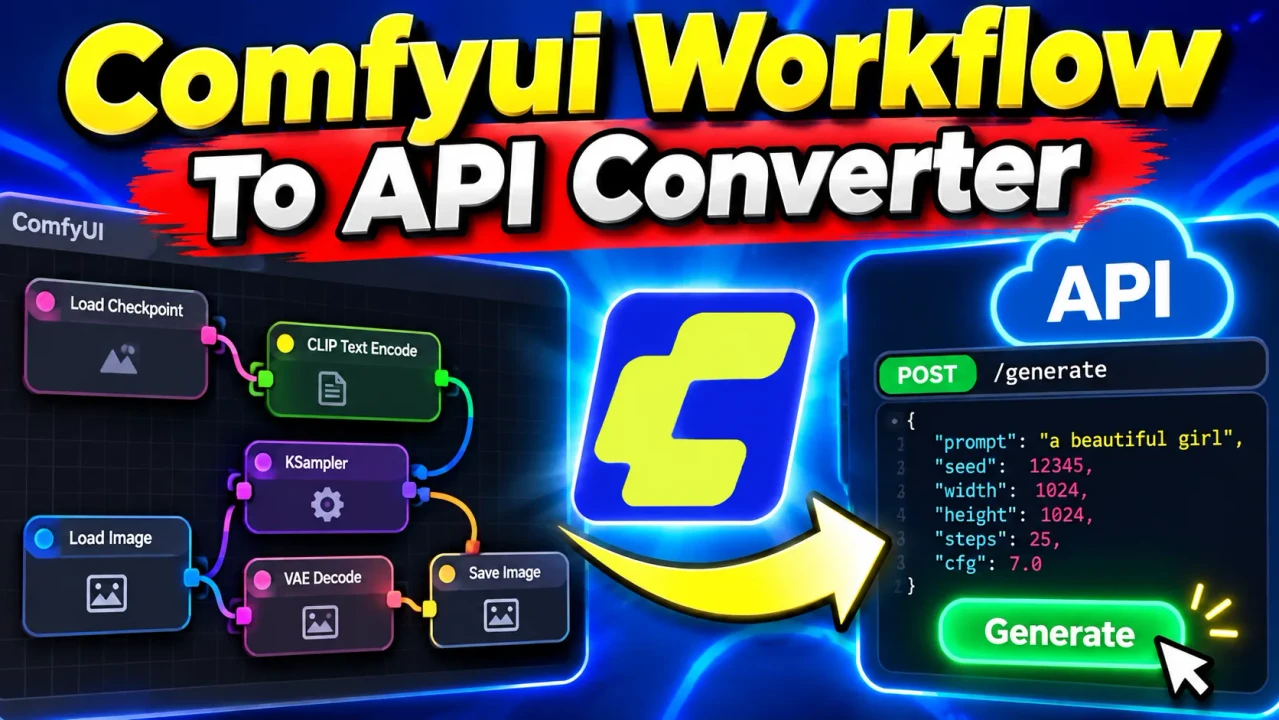
Comfyui Workflow To Api Converter
Quick answer: ComfyUI Workflow To API Converter is a developer utility that transforms a ComfyUI workflow saved in the visual editor's JSON format into an API-compatible prompt graph. It helps ComfyUI users prepare workflows for programmatic execution, API integrations, and automated image-generation pipelines.
The converter is intended for users who have built a workflow in ComfyUI's node-based interface and need the corresponding API-format JSON. ComfyUI's visual workflow representation and its API prompt representation serve different purposes: one describes the editable graph, while the other describes the node inputs and connections used to execute a prompt through the API.
Instead of manually rebuilding every node and connection, users can convert a saved workflow, inspect the resulting prompt graph, and prepare a request body for an API endpoint when needed. The output should still be checked against the installed ComfyUI version, available custom nodes, model files, and the workflow's actual execution requirements.
Who Should Use This Converter?
- ComfyUI workflow creators: Convert saved node-based workflows into an API-oriented representation.
- Python developers: Prepare prompt data for applications that communicate with a ComfyUI server.
- Automation engineers: Integrate image-generation workflows into repeatable jobs and processing pipelines.
- Custom-node users: Check whether converted node classes and input definitions are supported by their installed environment.
How to Use Comfyui Workflow To Api Converter?
- Export your workflow: Save or export the workflow JSON from the ComfyUI interface. Use the workflow representation expected by the converter, rather than assuming that every JSON export uses the same structure.
- Provide the JSON: Load or paste the workflow into the converter according to its available input controls.
- Convert the graph: Run the conversion to produce an API-format prompt graph. If supported, prepare the result as a request body for the ComfyUI prompt endpoint.
- Review the output: Inspect node identifiers, class types, input values, and connection references before using the result in an application.
Input and Output Example
The following illustrative example demonstrates the structural difference between a visual workflow node and a simplified API prompt graph. It is not a claim that every converter accepts this exact input or produces this exact output.
Input: Simplified Visual Workflow Node
{
  "nodes": [
    {
      "id": 12,
      "type": "KSampler",
      "widgets_values": [12345, "fixed", 20, 8, "euler", "normal", 1]
    }
  ],
  "links": []
}
Output: Illustrative API Prompt Graph
{
  "12": {
    "class_type": "KSampler",
    "inputs": {
      "seed": 12345,
      "steps": 20,
      "cfg": 8,
      "sampler_name": "euler",
      "scheduler": "normal",
      "denoise": 1
    }
  }
}
This example intentionally omits required model, latent, and conditioning connections. A usable KSampler node normally needs those inputs as well. The exact widget-to-input mapping depends on the node definition and the workflow format, so the example should be treated as a structural illustration rather than a complete executable prompt.
Technical Reference: Workflow JSON vs API Prompt JSON
| Workflow element | Typical API counterpart | Conversion consideration |
|---|---|---|
| Visual node ID | String key in the prompt object | References must remain consistent throughout the graph. |
| Node type | class_type |
The target ComfyUI environment must recognize the node class. |
| Node widget values | Entries under inputs |
Values must be mapped to the correct named inputs and data types. |
| Visual link | Input connection reference | The target input must point to the correct source node and output slot. |
| Model or checkpoint selection | Model-related node input | The referenced file must exist in the execution environment. |
| Custom node | Custom class_type and inputs |
The corresponding extension must be installed and compatible. |
| API submission wrapper | Request body containing a prompt graph | The wrapper is separate from the graph itself and must match the endpoint's expected schema. |
How the Conversion Works
A typical workflow-to-API conversion involves interpreting the source graph, identifying node classes, mapping node-specific values to named inputs, and rebuilding connections in the representation expected by ComfyUI's execution API. The converter's exact implementation determines how it handles reroutes, frontend-only nodes, dynamic inputs, custom extensions, and other workflow features.
For API execution, ComfyUI commonly uses a prompt graph whose entries identify node classes and their inputs. Connections are represented as references to another node and an output index. A request submitted to the prompt endpoint can include a wrapper object containing the prompt graph, depending on the API contract.
Example of a Node Connection
{
  "3": {
    "class_type": "CheckpointLoaderSimple",
    "inputs": {
      "ckpt_name": "example-checkpoint.safetensors"
    }
  },
  "4": {
    "class_type": "CLIPTextEncode",
    "inputs": {
      "text": "a mountain landscape at sunrise",
      "clip": ["3", 1]
    }
  }
}
In this illustrative graph, node 4 references output index 1 of node 3. The precise output index must correspond to the source node's declared outputs. A complete generation workflow also needs the appropriate positive and negative conditioning, latent input, sampler, decoder, and output nodes.
Supported Behavior and Limitations
The conversion target is the API prompt-graph representation used by ComfyUI. The converter's supplied information does not establish a complete compatibility matrix for workflow versions, custom nodes, or every frontend feature. Consequently, compatibility should be verified rather than assumed.
Important Validation Checks
- Malformed JSON: The source file must be valid JSON before structural conversion can proceed.
- Missing connections: A prompt may be structurally valid JSON but fail execution because a required input is absent.
- Node compatibility: A node class or input supported in one installation may not exist in another.
- Model paths: Checkpoint, LoRA, VAE, and other referenced assets must be available under the expected names.
- Widget mapping: Positional widget values should not be mapped blindly; the destination node's input definition matters.
- Frontend-only nodes: Some visual elements may not correspond to executable API nodes and may require special handling.
- Execution errors: Successful conversion does not guarantee successful generation; validate the graph in the target ComfyUI environment.
Privacy and Processing
The available tool details do not establish whether conversion runs entirely in the browser, uses a remote server, retains uploaded files, or records submitted workflow data. Do not place credentials, private infrastructure details, or other sensitive information into a workflow unless the tool's processing and retention policies have been reviewed.
Official Technical References
- ComfyUI Documentation — Consult the official documentation for workflow behavior, nodes, and supported features.
- ComfyUI on GitHub — Review the project source and API-related implementation details.
Author and Technical Review
Author Name: Jordan Mitchell
Author Description: Software engineering content specialist focused on developer tools, JSON data structures, workflow automation, and API integration concepts.
Technical Review: The technical explanation distinguishes editable workflow JSON from API prompt graphs and highlights node references, input mappings, execution dependencies, and environment-specific compatibility. The examples are illustrative and should be validated against the installed ComfyUI implementation before production use.