
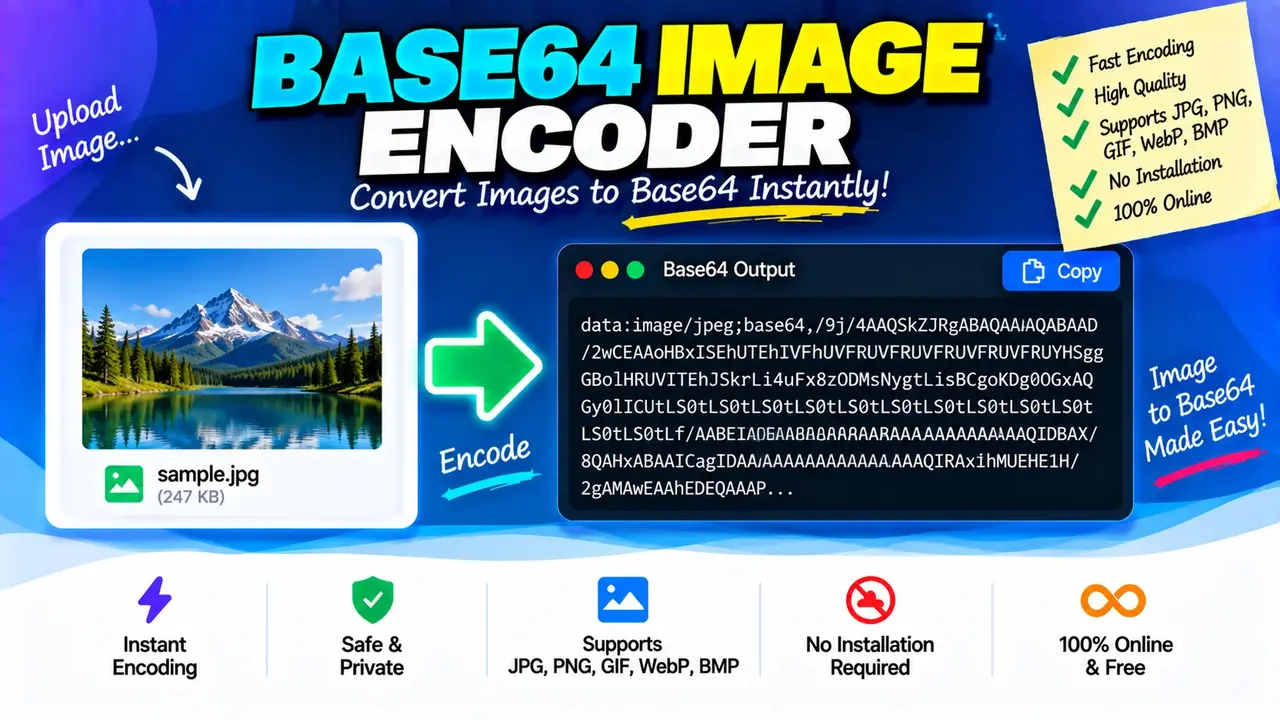
Base64 Image Encoder & Decoder Online Free
Quick answer: Base64 Image Encoder & Decoder Online Free is an image utility for converting image data into a Base64-encoded text string and interpreting a compatible Base64 image string as image data. Base64 encoding is useful for embedding images in HTML, CSS, JSON payloads, and other text-based formats that can carry encoded binary data.
Key Takeaways
- Primary function: Encode image data into Base64 text or decode Base64 image data.
- Input: An image file or a Base64 string, depending on the selected operation.
- Output: Base64 text or image data that a compatible viewer can render.
- Common uses: Data URLs, web development, image previews, and text-based data exchange.
What Does Base64 Image Encoder & Decoder Online Free Do?
Base64 represents binary data using a limited set of printable ASCII characters. An image encoder converts image bytes into Base64 text, while a decoder converts a valid Base64 string back into bytes. The resulting bytes must represent a supported image format to be displayed as an image.
Base64 is an encoding scheme, not an image compression algorithm or encryption method. Encoding does not inherently reduce an image's file size or protect its contents. In fact, Base64 text is typically around one-third larger than the original binary data before additional formatting and whitespace.
For example, a web developer might encode a small PNG image and place the result inside a data URL. A developer working with an API might decode a Base64 image value received in a JSON response so the original image data can be inspected or saved.
How to Use Base64 Image Encoder & Decoder Online Free?
- Select an operation: Choose image-to-Base64 encoding or Base64-to-image decoding, if both modes are provided by the interface.
- Provide the input: Select an image file for encoding or paste a Base64 string for decoding.
- Run the conversion: Start the operation using the tool's available action.
- Inspect the result: Review the generated Base64 text or the decoded image, then use any copy, preview, or download options available in the interface.
The exact controls, supported file formats, file-size limits, and export options depend on the deployed tool implementation. These capabilities should be confirmed in the live interface before being documented as guaranteed features.
Image-to-Base64 and Base64-to-Image Example
The following example demonstrates the transformation concept using a one-pixel transparent PNG. The Base64 payload is shown in abbreviated form for readability; it is not a complete decodable image string.
Encoding example
Input:
A PNG image file

Output:
data:image/png;base64,iVBORw0KGgoAAAANSUhEUg...
The prefix data:image/png;base64, identifies the media type and encoding used by a data URL. The remaining characters contain the encoded image bytes. The ellipsis indicates omitted content and must not be included when decoding.
Decoding example
Input:
data:image/png;base64,<complete Base64 payload>

Processing:
Remove the data URL prefix if the decoder expects only the Base64 payload.
Decode the remaining Base64 characters into bytes.

Output:
PNG image bytes
The placeholder above is illustrative, not valid image data. A successful decoding operation requires a complete Base64 payload and image bytes that match the claimed image format.
Base64 Image Reference Table
| Input or Component | Example | Meaning |
|---|---|---|
| PNG data URL prefix | data:image/png;base64, |
Declares PNG media data encoded as Base64. |
| JPEG data URL prefix | data:image/jpeg;base64, |
Declares JPEG image data encoded as Base64. |
| GIF data URL prefix | data:image/gif;base64, |
Declares GIF image data encoded as Base64. |
| WebP data URL prefix | data:image/webp;base64, |
Declares WebP image data encoded as Base64. |
| Base64 payload | iVBORw0KGgo... |
Contains encoded bytes; the prefix alone does not validate the underlying image. |
| Padding | = or == |
May appear at the end of a standard Base64 string to complete a four-character encoding group. |
These are common image media types and Base64 conventions, not a guarantee that the tool accepts every listed format. Actual format support depends on the encoder, decoder, and image-handling implementation.
How Does Base64 Image Conversion Work?
Base64 converts groups of three input bytes into four six-bit values, each represented by a character from the Base64 alphabet. When the input length is not divisible by three, padding characters may be added to complete the final group.
- Read image bytes: The encoder obtains the binary contents of an image.
- Encode the bytes: The bytes are converted into Base64 characters.
- Optionally add a data URL prefix: A media type such as
image/pngcan be included before the payload. - Decode when needed: The Base64 characters are converted back into the original bytes, provided the input is valid and the decoder handles its format correctly.
For an input containing N bytes, the padded Base64 payload length is generally calculated as:
Base64 length = 4 × ceil(N / 3)
This formula describes the encoded payload length only. A data URL prefix adds additional characters, and line breaks or other presentation formatting can increase the displayed length.
Technical Considerations and Limitations
Valid Base64 input
A decoder needs a complete, correctly formatted Base64 value. Missing characters, misplaced padding, unsupported alphabet characters, or a truncated payload can cause decoding to fail or produce invalid bytes. Some implementations accept whitespace or URL-safe Base64 variants, while others require standard Base64 syntax.
Data URLs versus raw Base64
A data URL contains metadata followed by a comma and the encoded payload. A raw Base64 string contains the payload without that prefix. A decoder must handle the expected input form correctly. When the interface does not document its behavior, check whether it expects the complete data URL or only the Base64 characters.
Image format and file integrity
Successful Base64 decoding does not guarantee that the result is a valid image. The decoded bytes must contain a supported image format and valid image data. Renaming arbitrary binary data to a PNG or JPEG file does not convert it into that format.
File size and performance
Base64 expands binary data by approximately 33.3% before accounting for prefixes and formatting. Large encoded strings can consume additional memory and may be inconvenient to include in HTML, CSS, databases, or API requests. For larger images, a conventional image file or binary upload may be more appropriate.
Privacy and processing
The processing location for this particular tool has not been established from the supplied tool information. Do not assume that image data stays in the browser or that files are never uploaded. Before submitting sensitive images, review the website's privacy policy and the tool's actual processing behavior.
Common Uses of Base64 Image Data
- HTML: Embed a small image directly in an element's
srcattribute using a data URL. - CSS: Represent a small image as a data URL for a background image or another image-valued property.
- JSON APIs: Transport image bytes in a text-based field when an API explicitly expects Base64.
- Debugging: Inspect Base64 payloads returned by APIs or stored in application data.
- Data exchange: Represent binary image data in systems that accept text but do not directly accept binary values.
Base64 is not encryption. Anyone who obtains the complete encoded string can generally decode it without a secret key. Avoid treating encoded images as confidential merely because their contents are not immediately readable.
Technical References
- RFC 4648: Base-N Encodings — defines Base64 alphabets, encoding behavior, and padding conventions.
- MDN: data URLs — explains how data URLs represent inline media and other data.
Author Information
Author Name: Daniel Brooks
Author Description: Software engineering content specialist focused on web technologies, binary data handling, and developer utilities.
Technical Review: The Base64 explanation and length formula are aligned with RFC 4648 conventions. The live tool's actual implementation, supported formats, and processing behavior require separate verification.